The best monitor settings for gaming give clearer images and lower lag. Players adjust settings to match their hardware and room light. This guide lists practical steps to set brightness, contrast, color, and refresh parameters. It keeps advice direct so players can apply changes fast and test results in seconds. Read each section to learn not only what to change but how to test the change, what tradeoffs to expect, and which settings to save as profiles for quick switching.
Key Takeaways
- The best monitor settings for gaming start with adjusting brightness and contrast to suit room lighting, ensuring deep blacks without losing detail.
- Set your monitor’s refresh rate as high as your GPU can support, ideally using native rates like 144Hz or 240Hz, and enable adaptive sync to reduce screen tearing and stutter.
- Balance resolution and scaling to maintain sharp visuals without sacrificing steady frame rates for smooth gameplay.
- Use advanced settings like overdrive to minimize smearing, enable HDR only if supported by your monitor and game, and adjust black stabilizer carefully to enhance dark areas without losing contrast.
- Create and save multiple color and display profiles tailored to different game genres for quick switching and optimal visual experience.
- Regularly calibrate your monitor with test images, keep your firmware and drivers updated, and reset settings when necessary to troubleshoot and maintain ideal gaming performance.
Essential Display Settings: Brightness, Contrast, Color Temperature, And Gamma
Brightness affects visibility. Players lower brightness in dark rooms and raise it in bright rooms. The best monitor settings for gaming start with brightness set so blacks look deep but not crushed. Contrast controls difference between light and dark. A mid-high contrast gives punch without clipping highlights. Color temperature shifts warmth. Most monitors default to 6500K. Gamers who prefer natural skin tones keep near 6500K. Cooler values make whites look bluish. Gamma controls midtones. A gamma of 2.2 gives balanced shades for most titles. Players test each change with a neutral scene. They then save the profile if it looks correct.
Practical steps: use your monitor’s on-screen display (OSD) to change brightness in 5–10% steps while viewing a dark and a bright test image, and stop where shadow detail is visible without the image looking washed out. For contrast, increase until highlights begin to lose detail, then back off slightly. For color temperature, try presets (Warm / Normal / Cool) and use the custom RGB sliders if available to nudge a green or magenta tint out. To verify gamma, use a simple gamma test image or the built-in Windows calibration tool; adjust until midtones are neither too flat nor too contrasty. Save these as a named profile in the monitor menu or GPU control panel so you can revert quickly.
Refresh Rate, Response Time, And Adaptive Sync: Smoothness Matters More Than You Think
Refresh rate determines frame updates per second. Players choose the highest refresh rate their GPU can sustain. The best monitor settings for gaming use native refresh rates like 144Hz or 240Hz when possible. Response time measures pixel transition speed. Lower response times reduce ghosting. Gamers select the fastest response mode that avoids inverse ghosting. Adaptive sync, such as FreeSync or G‑Sync, ties the display to the GPU. Players enable adaptive sync to cut screen tearing and stutter. They also enable V‑Sync only when adaptive sync is unavailable. If input lag rises, players reduce graphics settings to keep frame rates stable at the monitor’s refresh target.
How to set these: set your OS and GPU driver to the monitor’s highest supported refresh rate first, then enable the communication mode in your GPU control panel (G-Sync/FreeSync). Test responsiveness using fast-paced gameplay or a frame-timing overlay; if you see trailing artifacts, reduce the overdrive level or select a different response-time preset. When adaptive sync is active and frame rates dip below the monitor’s low-framerate compensation threshold, consider enabling frame capping or a light form of V‑Sync to prevent tearing. If you need consistent ultra-low input lag for competitive play, favor higher FPS over post-processing effects that add latency.
Resolution, Scaling, And Field Of View: Balancing Clarity and Performance
Resolution sets pixel count. Higher resolution gives sharper visuals but demands more GPU power. Players pick the highest resolution that keeps frame rates steady. The best monitor settings for gaming match resolution to GPU capability. Scaling lets gamers enlarge UI without lowering render quality. Windows scaling or in-game render scaling solves small text on high DPI screens. Field of view (FOV) affects the visible scene. A wider FOV shows more but can reduce perceived detail at distance. Players use the FOV that feels comfortable and preserves aim. If performance drops, they lower resolution or use render scaling rather than native resolution drops.
Practical tips: if your GPU struggles at native resolution, try in-game render scaling (downscale internally then upscale) rather than changing desktop resolution — it preserves UI clarity while saving GPU load. Use integer scaling on compatible hardware to keep pixel-perfect sharpness for retro or pixel-art titles. Adjust FOV incrementally; competitive players sometimes prefer a narrower FOV for target acquisition, whereas simulation and RPG players often increase FOV for immersion. Monitor ultrawide or multi-monitor setups may require additional tweaks to HUD scaling and mouse sensitivity to feel natural across a wider canvas.
Advanced Picture Tweaks: Overdrive, HDR, Black Stabilizer, And Color Profiles
Overdrive speeds pixel transitions. Players set overdrive to the level that reduces smearing without adding inverse ghosting. Monitors often label this setting as OD or Response. HDR increases dynamic range when a game supports it. The best monitor settings for gaming enable HDR only when the title and monitor handle it well. Bad HDR can wash colors or crush blacks. Black stabilizer or shadow boost lifts dark areas. Players use it to spot enemies in shadows but avoid overuse that flattens contrast. Color profiles let players switch between presets for genres. A profile for shooters favors contrast and high refresh, while a profile for RPGs favors color depth. Players create and name profiles and then switch them by game type.
Advanced checklist: test overdrive using scenes with fast motion and adjust until ghosting disappears but inverse artifacts do not appear. For HDR, enable it in Windows and the game, then inspect both dark and bright scenes — if white clipping or muddy blacks occur, turn HDR off or try a different HDR mode in the monitor OSD. Use black stabilizer conservatively; small increments can reveal targets without washing the image. Build multiple color profiles in your monitor’s software or GPU control panel — for example “Competitive,” “RPG/Cinematic,” and “Photo/Content.” Store them to hotkeys if your monitor supports quick profile switching, or use third-party profile managers for automatic switching by executable.
Quick Calibration And Troubleshooting Checklist: Tests, In‑Game Profiles, And When To Reset
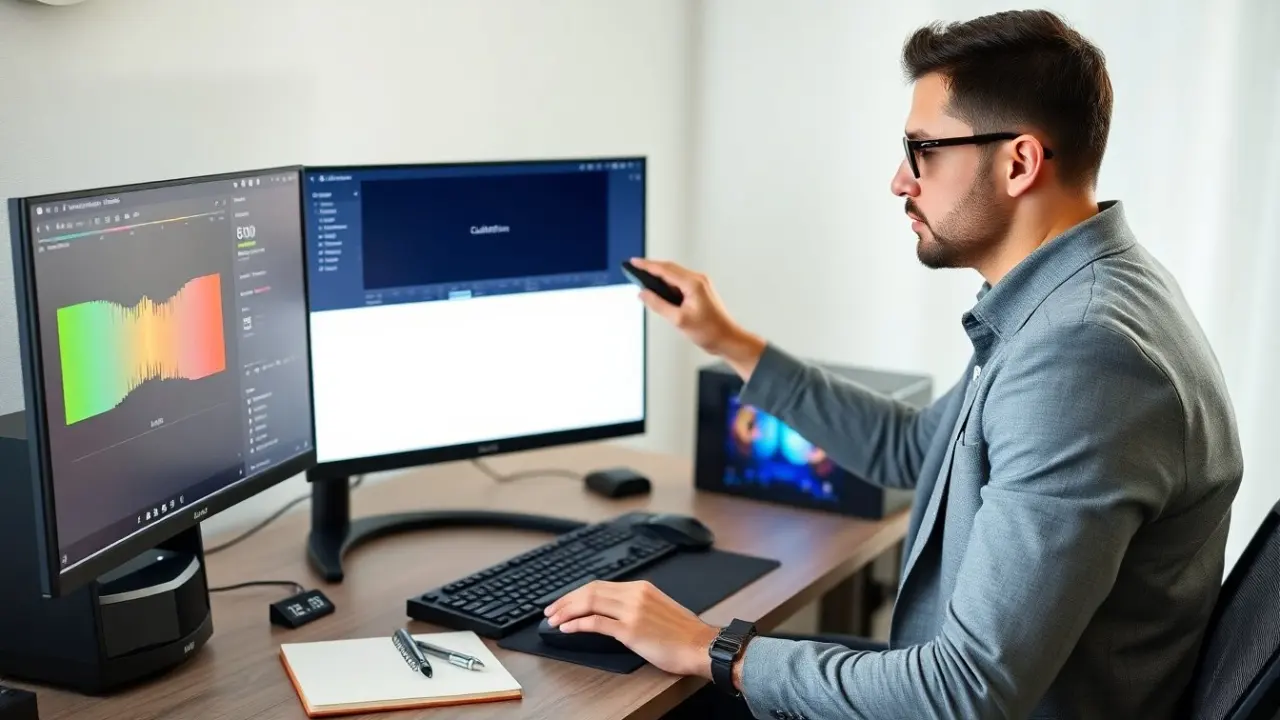
Run a few simple tests after changes. Players open a neutral image, a dark scene, and a high-contrast scene. They check for crushed blacks, blown highlights, and color shift. The best monitor settings for gaming include saving at least two profiles: one for competitive play and one for visuals. If a setting creates input lag or artifacts, the player reverts that setting. Update monitor firmware and GPU drivers when fixes arrive. If colors look wrong, players perform a factory reset and start again. If problems persist, they test the monitor on another PC to isolate hardware faults.
Checklist and tests: 1) Confirm refresh rate in the OS and GPU control panel. 2) Run a gamma and contrast test image to validate midtones and highlight detail. 3) Test adaptive sync by toggling it and checking for tearing at variable FPS. 4) Play a few minutes of your main game after each profile change to validate input feel and visual clarity. 5) Keep copies of saved profiles and note which games or genres they suit. When to reset: if multiple settings conflict, colors shift unexpectedly after driver updates, or artifacts appear after a firmware install, perform a factory reset and reapply the proven profile steps above. If hardware faults remain after testing on a second machine, contact the manufacturer for service options.